SSH Companion: Your AI Wingman on the Remote Server

Debugging a remote system at 11pm is a specific kind of loneliness. You’re staring at metrics, half-remembering a sar flag you used once two years ago, and wishing you had someone who knew this stuff standing behind you going “try that, no wait — check the iowait first”.
I built SSH Companion for exactly that feeling.
What it is
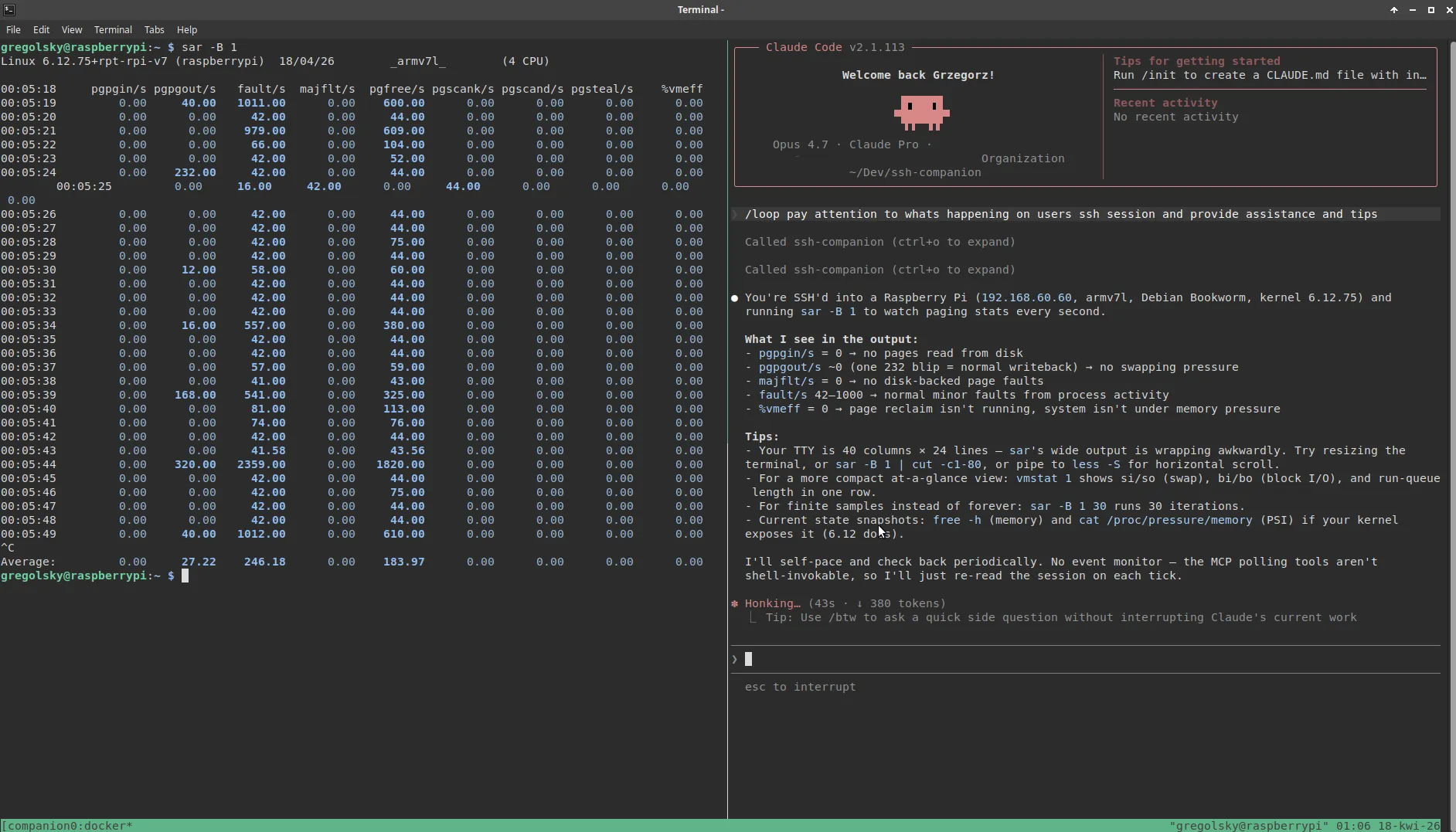
SSH Companion is a small MCP server that wraps your SSH session and lets Claude watch the terminal output in real time. It can advise you, remind you of commands you use once a year, explain what something means, or just confirm that yes, that swap usage does look suspicious. What it cannot do is type anything. It has no write access. It watches.
This matters. You stay in control of the keyboard. Claude stays in the role it’s actually good at: pattern recognition, recall, and commentary. The session is yours. The wingman is just over your shoulder.
How it works
The plumbing is simple but clever. Your SSH session is wrapped with script — a Unix utility that records everything printed to a terminal into a file, like a flight recorder for your shell session. The MCP server tails that transcript, strips the ANSI escape codes, and feeds the clean text to Claude via stdio. Claude sees exactly what you see, minus the colors.
The container runs unprivileged — --cap-drop=ALL, no new privileges. It can see your session log. It cannot reach anything else.
One caveat worth repeating from the README: don’t cat your secrets. If you pipe a .env file to the terminal, Claude will read it. That’s the deal you make when you put an AI observer on your session. The security model is about the container, not about what you type.
WARNING: token mileage will vary depending on transcript volume. A busy session — lots of command output, verbose logs, long dmesg dumps — means a large transcript fed into context each time Claude responds. Short diagnostic sessions work beautifully. Multi-hour tail-follow sessions will burn through context fast.
tmux makes it actually nice
The whole thing launches in tmux on Linux — arguably the most underrated tool in any Unix workflow. One command splits your terminal: SSH session on the left, Claude Code on the right, watching the same transcript. If you haven’t spent serious time with tmux, this project is a decent excuse to start. It turns a single terminal into a proper workspace, with panes, sessions, and keyboard-driven navigation that becomes muscle memory fast. On Windows, SSH Companion uses Windows Terminal with separate panes instead — same idea, different plumbing. The launch scripts cover both: companion.sh for bash, companion.ps1 for PowerShell.
The performance skill
SSH Companion ships with a built-in performance debugging skill. When you invoke it, Claude starts with Brendan Gregg’s Linux Performance in 60 Seconds checklist — the canonical first pass any experienced sysadmin runs when a system is misbehaving. Uptime, dmesg, vmstat, mpstat, iostat, free, sar, top. The ten commands that tell you where to look next.
Brendan Gregg is the performance engineer’s performance engineer — the person who wrote the book on Linux systems observability (literally). Having his checklist as the entry point is not an accident. It’s a good default because it’s the right default.
Try it
# launch SSH session with your AI wingman
./companion.sh ssh user@yourserver
companion.sh does more than launch tmux. It manages the MCP server registration and Claude permissions by writing the appropriate Claude settings directly into the repo — so each run spins up a fresh, self-contained MCP server instance scoped to that session. When the session ends, nothing lingers. No global config pollution, no leftover server processes.
The repo is at github.com/gregolsky/ssh-companion. You’ll need Docker, tmux, and Claude Code CLI. The README walks through the setup — it’s a few steps but nothing exotic.
If you’ve ever wished you had a senior sysadmin watching your back on a tricky production box, this is close enough.